> ## Documentation Index
> Fetch the complete documentation index at: https://docs.play2sell.com/llms.txt
> Use this file to discover all available pages before exploring further.
# CVCRM Integration — Commission Payments
> How to connect your CVCRM to Play2sell PAY and pay commissions automatically — credentials, webhooks, payment method, receipt, lifecycle, testing, FAQ, and troubleshooting. Screen-by-screen setup, no coding.
The **CVCRM × Commission Payments integration** connects your **CVCRM** to **Play2sell PAY** to issue the sale's boleto to the buyer and **pay commissions automatically** — with the boleto, settlement, deed registration, and receipt reflected back in your CVCRM. Setup is done **screen by screen, with no coding**, and takes about **15 minutes**.
## What you'll set up
Generate an **API token**, create **3 webhooks**, and make sure the commission uses the **Boleto payment method**.
**Connect** the CVCRM (credentials + situation mapping) and **copy the webhook URL**.
| Step | What you do | Result |
| ----- | ---------------------------------------- | ------------------------------------------ |
| **1** | Generate a token in CVCRM | the connection's API credential |
| **2** | Connect the CVCRM in the Play2sell panel | integration configured |
| **3** | Copy your webhook URL | the address CVCRM uses to notify Play2sell |
| **4** | Create 3 webhooks in CVCRM | CVCRM starts notifying each event |
| **5** | Test with a sale | confirms the end-to-end flow |
**Prerequisites**
* **Administrative** access to your CVCRM manager (`yourcompany.cvcrm.com.br/gestor`).
* A dedicated **API user** (CVCRM recommends naming it **"Integração"**, so the history stays attributable). If you'll use the **transfer receipt** (Step 2.4), this user must be a **manager with a panel access password**.
* The **situations** (statuses) you use for **sale**, **deed registration**, and **cancellation/contract termination** already configured in CVCRM.
* **Play2sell PAY** enabled on your account (if unsure, contact support).
## How does the integration work?
The **CVCRM is the source of truth** for the sale, the parties, the commission split, and the deed registration. **Play2sell PAY** issues the boleto to the buyer, holds the funds in custody, and distributes the commissions. The two systems stay in sync via **webhooks** (CVCRM signals when something changes) and **write-backs** (Play2sell reports the result back in CVCRM).
When the sale is registered, CVCRM has the amount, the beneficiaries, the number of installments, and the due dates.
Play2sell originates the sale and issues a **boleto (with Pix)** to the buyer.
The issued boleto is written back to the reservation's **commission** (situation "Programado").
Upon payment confirmation, Play2sell reports the **paid** status back to CVCRM.
When the commission's deed is registered, Play2sell releases and distributes the transfer to the beneficiaries.
Transfer via **PIX** to each beneficiary; the **receipt** is attached to the commission in CVCRM. On contract termination, the amount is refunded.
**Safe synchronization.** CVCRM webhooks are **thin** — they carry only an identifier (e.g., `{"idreserva": 123}`). Play2sell uses that signal merely as a trigger and **fetches the full record back** from the CVCRM API, authenticated, before acting. That's why a forged webhook can't inject data.
**Identity is by CPF/CNPJ, never by email.** Buyers and beneficiaries are resolved by **document**. Make sure brokers, the real estate agency, and other beneficiaries have their CPF/CNPJ filled in within CVCRM.
## Step 1 — Get the credentials in CVCRM (email + token)
The connection needs three values from your CVCRM: **domain**, **email**, and **token**.
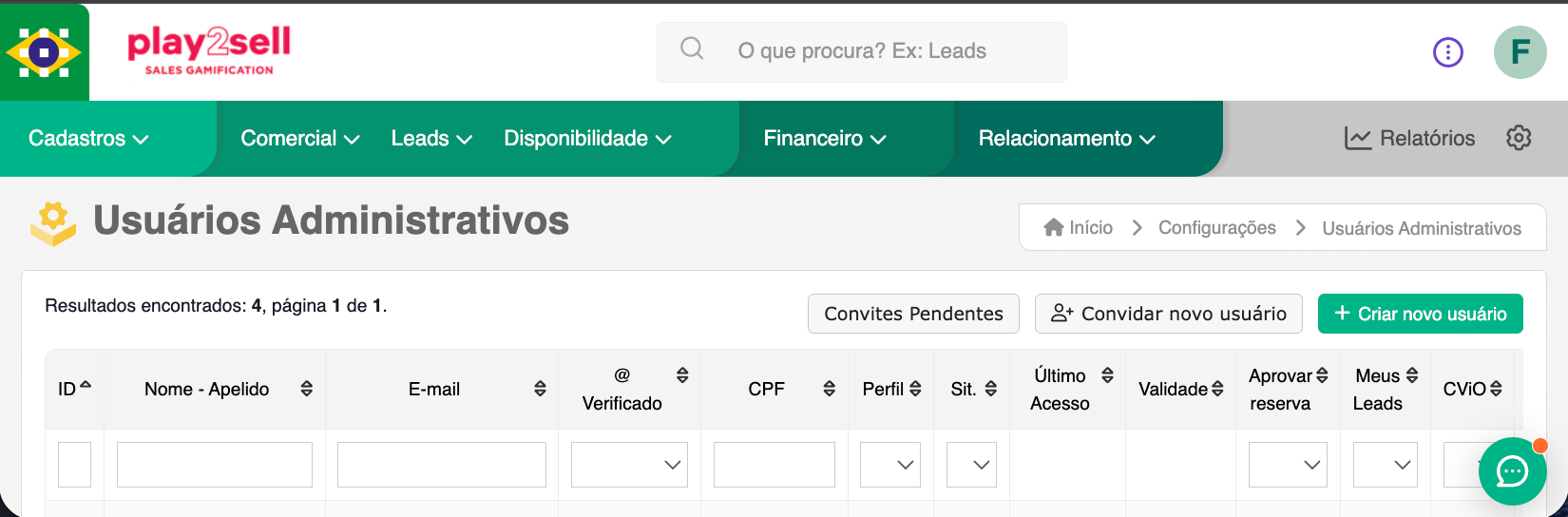
In the CVCRM manager, click the gear ⚙ (top-right corner) and go to **Usuários Administrativos** (Administrative Users).
Find the integration user in the list and, under **Opções** (Options), choose **Tokens**.
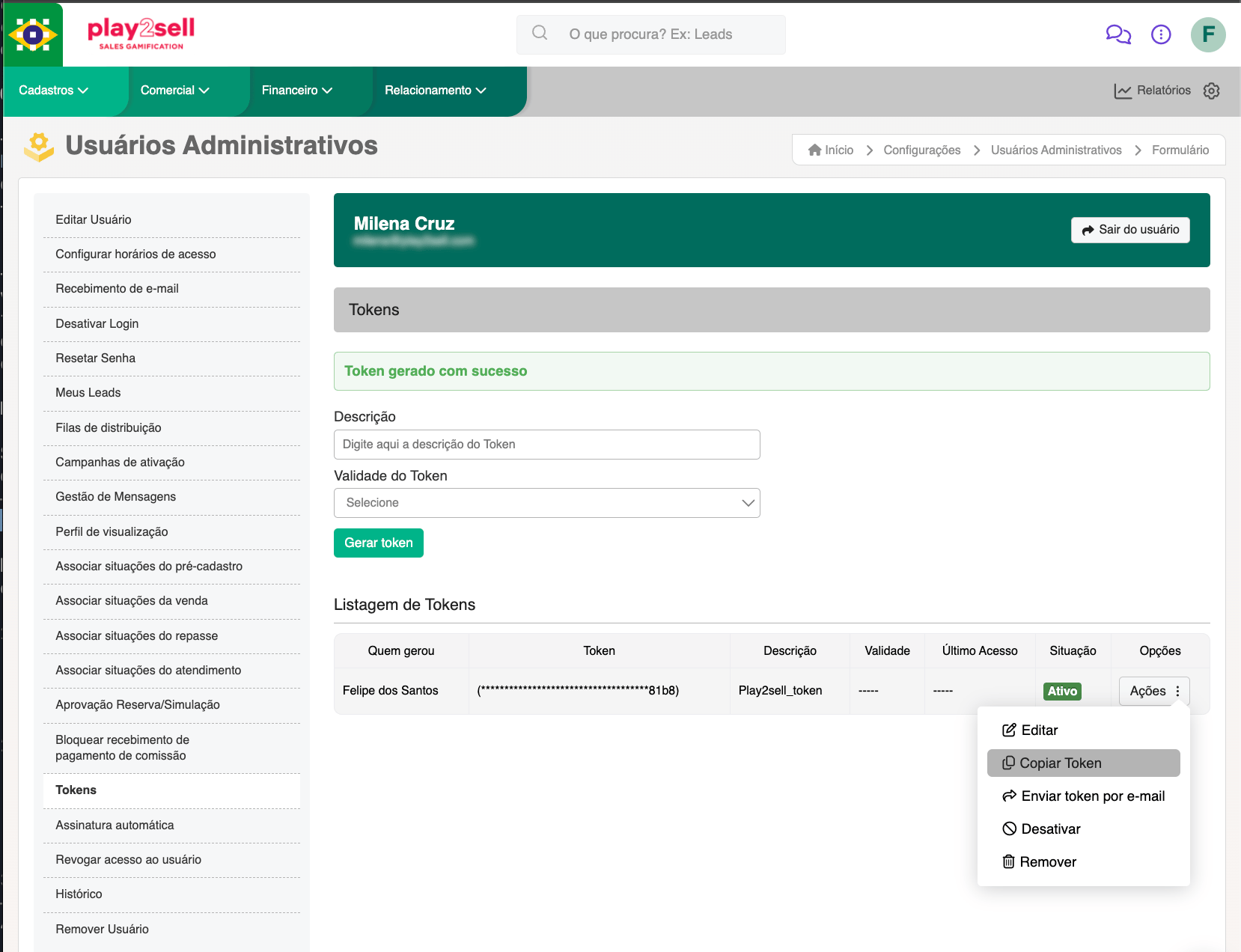
 Fill in the **Descrição** (Description, e.g., `Play2sell`), choose the **Validade do Token** (token expiry), and click **Gerar token** (Generate token). The token appears in the **Listagem de Tokens** (token list) — under **Ações → Copiar Token** (Actions → Copy Token), copy it.
 * **Email:** the administrative user's email (must belong to the same CVCRM domain).
* **Domain:** your account's subdomain — the part **before** `.cvcrm.com.br` (e.g., in `yourcompany.cvcrm.com.br`, the domain is `yourcompany`).
You have **domain**, **email**, and **token** in hand — the three values for Step 2.
The **token is sensitive** — treat it like a password. To rotate it later, generate a new one in CVCRM and update the connection in the Play2sell panel.
## Step 2 — Connect in the Play2sell panel
In the Play2sell panel, go to **Integrações → Conectores** (Integrations → Connectors), find **CVCRM**, and click **Conectar** (Connect).
* **Email:** the administrative user's email (must belong to the same CVCRM domain).
* **Domain:** your account's subdomain — the part **before** `.cvcrm.com.br` (e.g., in `yourcompany.cvcrm.com.br`, the domain is `yourcompany`).
You have **domain**, **email**, and **token** in hand — the three values for Step 2.
The **token is sensitive** — treat it like a password. To rotate it later, generate a new one in CVCRM and update the connection in the Play2sell panel.
## Step 2 — Connect in the Play2sell panel
In the Play2sell panel, go to **Integrações → Conectores** (Integrations → Connectors), find **CVCRM**, and click **Conectar** (Connect).
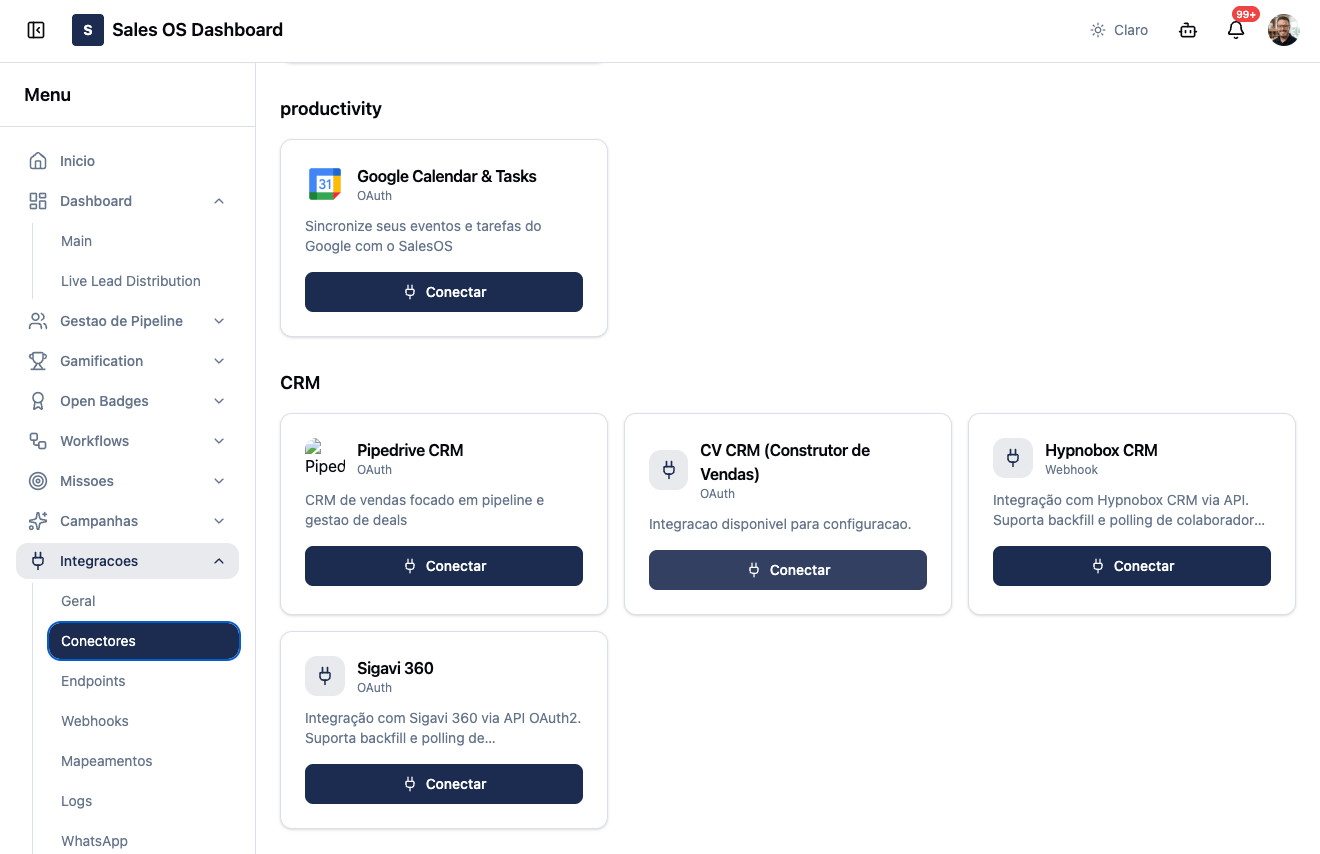 The form has five blocks. Fill in each one as described below.
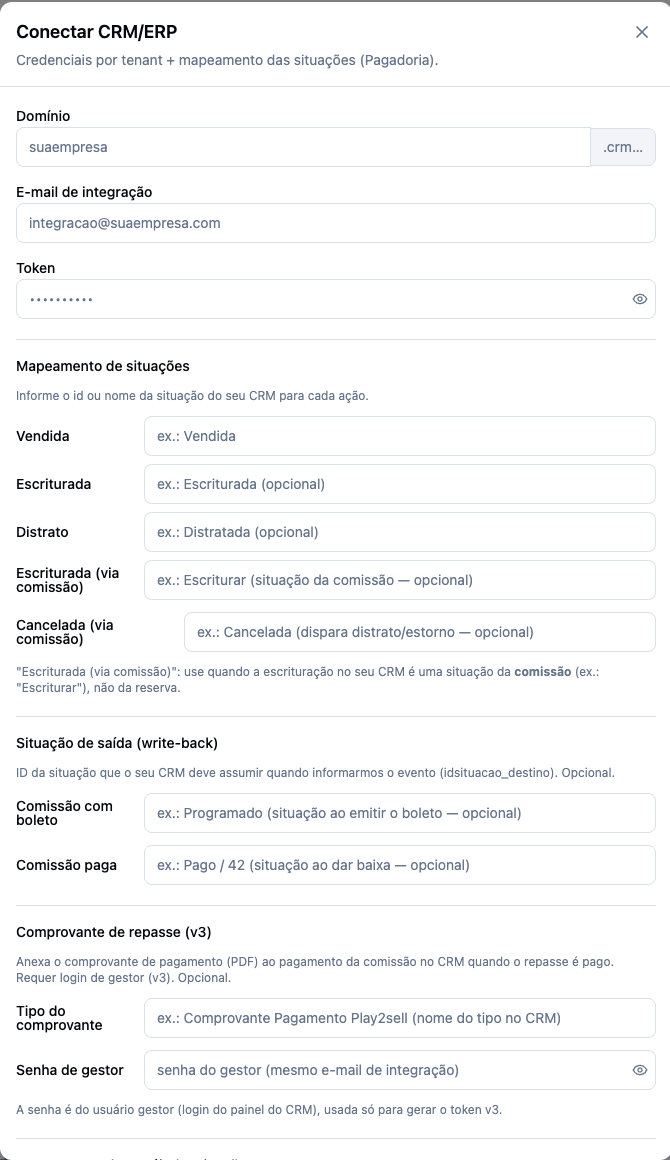 ### 2.1 — Credentials
Fill in the three values from Step 1:
| Field | What to enter |
| ------------------------ | -------------------------------------------------------------------------- |
| **Domínio** | The subdomain before `.cvcrm.com.br` (e.g., `yourcompany`). |
| **E-mail de integração** | The API user's email. |
| **Token** | The token generated in CVCRM (stored securely; not shown again afterward). |
### 2.2 — Situation mapping
Here you tell Play2sell **which situation in your CVCRM** corresponds to each action. Enter the **name** (or the id) of the situation, **exactly** as it appears in your CVCRM.
| Field | When to use | Action it triggers |
| ------------------------------ | ------------------------------------------------------------------------------------------------------------------- | ------------------------------------------ |
| **Vendida** | The **reservation** situation that indicates a confirmed sale. | Originates the sale and issues the boleto. |
| **Escriturada** | (Optional) The **reservation** situation when deed registration is recorded on the reservation itself. | Releases the transfer. |
| **Distrato** | (Optional) The **reservation** situation for cancellation/contract termination. | Refund. |
| **Escriturada (via comissão)** | Use when deed registration in your CVCRM is a **commission** situation (e.g., "Escriturar"), not a reservation one. | Releases the transfer. |
| **Cancelada (via comissão)** | (Optional) The **commission** situation that triggers termination/refund. | Refund. |
Use the **exact label** from your instance. Situations are configurable and vary from company to company — "Vendida", "Venda Realizada", "Aprovada", etc. Copy the text as it appears in your CVCRM.
Many operations record deed registration **on the commission** (situation "Escriturar"), not on the reservation. In that case, leave **Escriturada** blank and fill in **Escriturada (via comissão)**.
### 2.3 — Exit situation (write-back)
The **write-back** is when Play2sell reports the result back in CVCRM. These fields say **which situation your CVCRM should take on** for each event. They are **optional**.
| Field | Meaning | Example |
| ----------------------- | --------------------------------------------------------------- | ------------ |
| **Comissão com boleto** | The commission payment situation **when the boleto is issued**. | `Programado` |
| **Comissão paga** | The commission payment situation **when it is settled** (paid). | `Pago` |
For the exit situation, always prefer the **name** (e.g., `Programado`, `Pago`) over the id. The payment situation ids vary per instance and may land on misleading values.
### 2.4 — Transfer receipt (optional)
Makes Play2sell **attach the payment receipt (PDF)** to the commission in CVCRM when the transfer is paid. It is **optional** and requires a **manager** login in CVCRM.
| Field | What to enter |
| ----------------------- | -------------------------------------------------------------------------------- |
| **Tipo do comprovante** | The **file type name** registered in your CVCRM (e.g., `Comprovante_Play2sell`). |
| **Senha de gestor** | The **password** of the CVCRM manager user (the same **E-mail de integração**). |
**Credentials the receipt requires.** The attachment uses CVCRM's **v3 API**, which — unlike the rest of the integration (which uses the **token**) — **logs in with email + password** to the manager panel. Therefore:
* The **E-mail de integração** (Step 2.1) must belong to a **manager user** that signs in to the CVCRM panel **with a password**.
* Enter that **user's password** in the **Senha de gestor** field.
* Access is **renewed automatically** — you don't update anything periodically. If you change the password in CVCRM, update it here too.
The **receipt type must already exist** in your CVCRM, and the **name** here must be **identical** to the one registered there. See how to create it in **Step 4.2**. Without this setup, everything else still works — only the receipt attachment doesn't happen.
### 2.5 — Role mapping (optional)
Translate **your CVCRM's commission type** into the beneficiary's role in Play2sell. On the left, the text as it comes from CVCRM (e.g., `Corretor`); on the right, the role: `VENDEDOR`, `IMOBILIARIA`, `HOUSE`, `GERENTE`, `COORDENADOR`, or `PARCEIRO`. Use **"+ Adicionar papel"** (+ Add role) to include as many as you need.
Click **Conectar** to save.
CVCRM shows as **connected** in the panel and opens the **"CRM conectado"** (CRM connected) screen with your webhook URL.
## Step 3 — Copy the webhook URL
When you click **Conectar**, Play2sell **automatically provisions** the receiving endpoint and shows the **"CRM conectado"** screen with your **webhook URL** and a **copy** button. Copy that URL — you'll paste it into CVCRM in the next step.
The URL is **unique to your account**. To retrieve it later, go to **Integrações → Endpoints** — that's where the webhook endpoints are listed.
### 2.1 — Credentials
Fill in the three values from Step 1:
| Field | What to enter |
| ------------------------ | -------------------------------------------------------------------------- |
| **Domínio** | The subdomain before `.cvcrm.com.br` (e.g., `yourcompany`). |
| **E-mail de integração** | The API user's email. |
| **Token** | The token generated in CVCRM (stored securely; not shown again afterward). |
### 2.2 — Situation mapping
Here you tell Play2sell **which situation in your CVCRM** corresponds to each action. Enter the **name** (or the id) of the situation, **exactly** as it appears in your CVCRM.
| Field | When to use | Action it triggers |
| ------------------------------ | ------------------------------------------------------------------------------------------------------------------- | ------------------------------------------ |
| **Vendida** | The **reservation** situation that indicates a confirmed sale. | Originates the sale and issues the boleto. |
| **Escriturada** | (Optional) The **reservation** situation when deed registration is recorded on the reservation itself. | Releases the transfer. |
| **Distrato** | (Optional) The **reservation** situation for cancellation/contract termination. | Refund. |
| **Escriturada (via comissão)** | Use when deed registration in your CVCRM is a **commission** situation (e.g., "Escriturar"), not a reservation one. | Releases the transfer. |
| **Cancelada (via comissão)** | (Optional) The **commission** situation that triggers termination/refund. | Refund. |
Use the **exact label** from your instance. Situations are configurable and vary from company to company — "Vendida", "Venda Realizada", "Aprovada", etc. Copy the text as it appears in your CVCRM.
Many operations record deed registration **on the commission** (situation "Escriturar"), not on the reservation. In that case, leave **Escriturada** blank and fill in **Escriturada (via comissão)**.
### 2.3 — Exit situation (write-back)
The **write-back** is when Play2sell reports the result back in CVCRM. These fields say **which situation your CVCRM should take on** for each event. They are **optional**.
| Field | Meaning | Example |
| ----------------------- | --------------------------------------------------------------- | ------------ |
| **Comissão com boleto** | The commission payment situation **when the boleto is issued**. | `Programado` |
| **Comissão paga** | The commission payment situation **when it is settled** (paid). | `Pago` |
For the exit situation, always prefer the **name** (e.g., `Programado`, `Pago`) over the id. The payment situation ids vary per instance and may land on misleading values.
### 2.4 — Transfer receipt (optional)
Makes Play2sell **attach the payment receipt (PDF)** to the commission in CVCRM when the transfer is paid. It is **optional** and requires a **manager** login in CVCRM.
| Field | What to enter |
| ----------------------- | -------------------------------------------------------------------------------- |
| **Tipo do comprovante** | The **file type name** registered in your CVCRM (e.g., `Comprovante_Play2sell`). |
| **Senha de gestor** | The **password** of the CVCRM manager user (the same **E-mail de integração**). |
**Credentials the receipt requires.** The attachment uses CVCRM's **v3 API**, which — unlike the rest of the integration (which uses the **token**) — **logs in with email + password** to the manager panel. Therefore:
* The **E-mail de integração** (Step 2.1) must belong to a **manager user** that signs in to the CVCRM panel **with a password**.
* Enter that **user's password** in the **Senha de gestor** field.
* Access is **renewed automatically** — you don't update anything periodically. If you change the password in CVCRM, update it here too.
The **receipt type must already exist** in your CVCRM, and the **name** here must be **identical** to the one registered there. See how to create it in **Step 4.2**. Without this setup, everything else still works — only the receipt attachment doesn't happen.
### 2.5 — Role mapping (optional)
Translate **your CVCRM's commission type** into the beneficiary's role in Play2sell. On the left, the text as it comes from CVCRM (e.g., `Corretor`); on the right, the role: `VENDEDOR`, `IMOBILIARIA`, `HOUSE`, `GERENTE`, `COORDENADOR`, or `PARCEIRO`. Use **"+ Adicionar papel"** (+ Add role) to include as many as you need.
Click **Conectar** to save.
CVCRM shows as **connected** in the panel and opens the **"CRM conectado"** (CRM connected) screen with your webhook URL.
## Step 3 — Copy the webhook URL
When you click **Conectar**, Play2sell **automatically provisions** the receiving endpoint and shows the **"CRM conectado"** screen with your **webhook URL** and a **copy** button. Copy that URL — you'll paste it into CVCRM in the next step.
The URL is **unique to your account**. To retrieve it later, go to **Integrações → Endpoints** — that's where the webhook endpoints are listed.
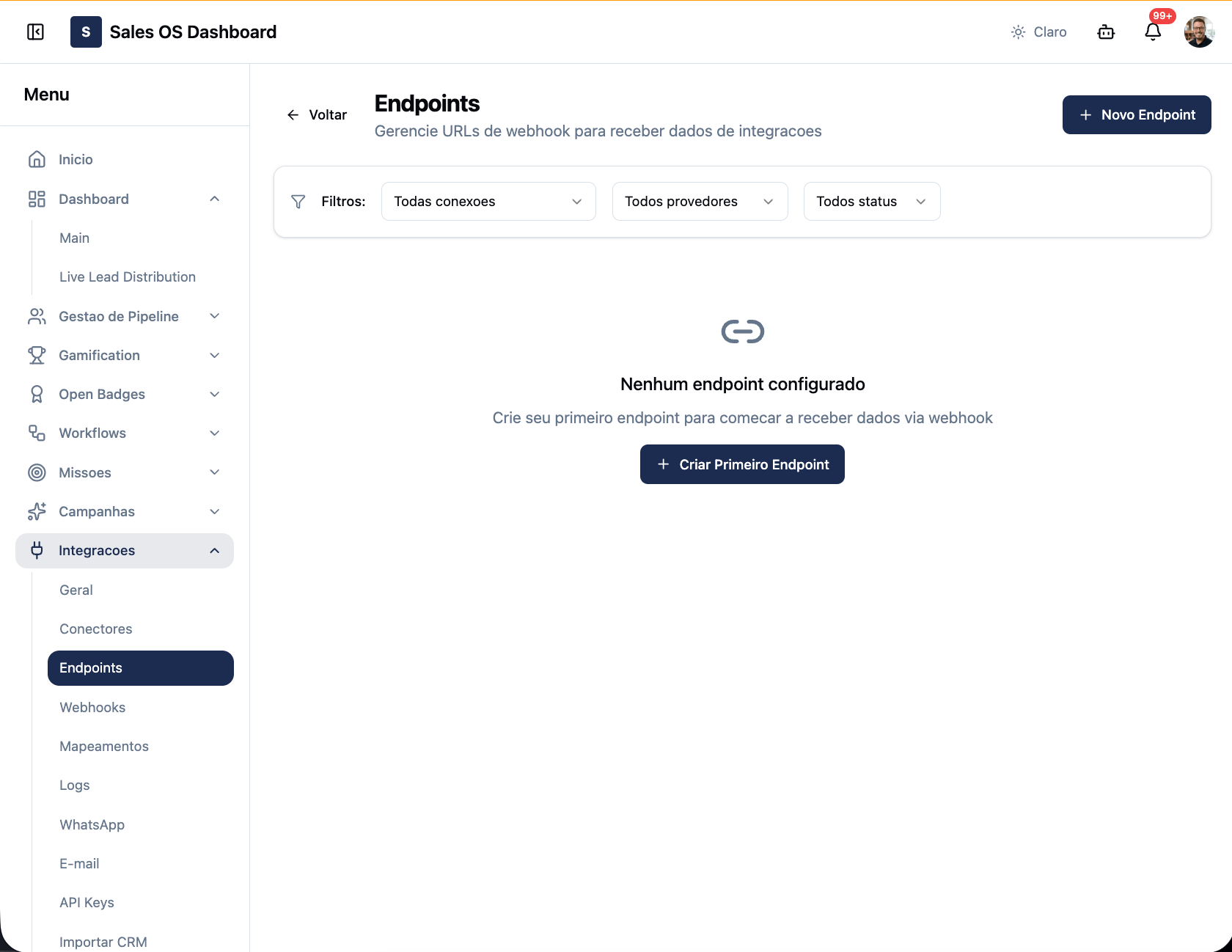 You have the **webhook URL** copied — ready to paste into CVCRM.
## Step 4 — Configure CVCRM
Here you tell CVCRM to notify Play2sell on each event (4.1) and ensure two supporting settings (4.2 and 4.3).
### 4.1 — Create the 3 webhooks
In the CVCRM manager, go to **Configurações ⚙ → Integrações** (Settings → Integrations) and open the **Webhooks** card (under "Configurar").
You have the **webhook URL** copied — ready to paste into CVCRM.
## Step 4 — Configure CVCRM
Here you tell CVCRM to notify Play2sell on each event (4.1) and ensure two supporting settings (4.2 and 4.3).
### 4.1 — Create the 3 webhooks
In the CVCRM manager, go to **Configurações ⚙ → Integrações** (Settings → Integrations) and open the **Webhooks** card (under "Configurar").
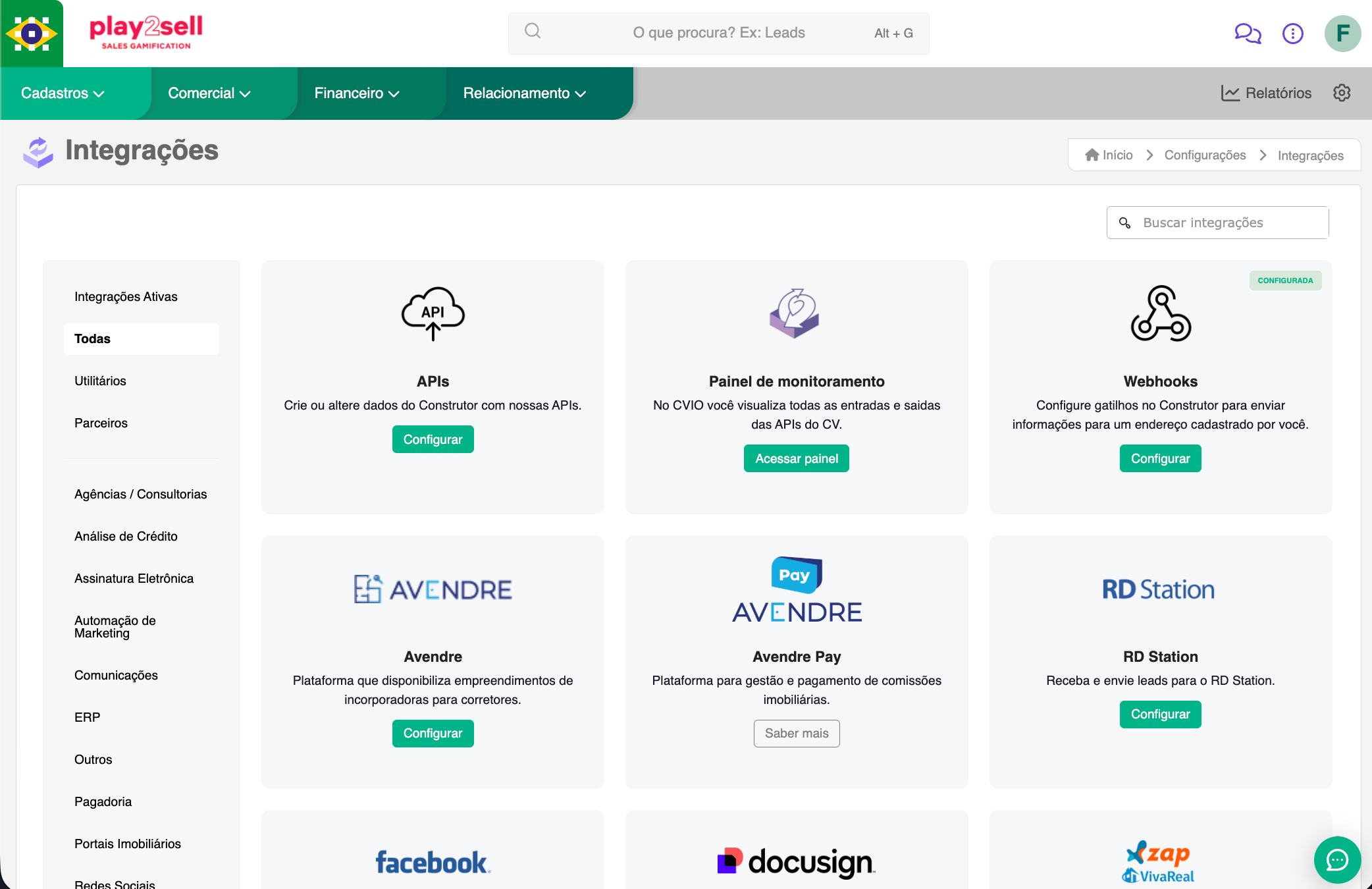
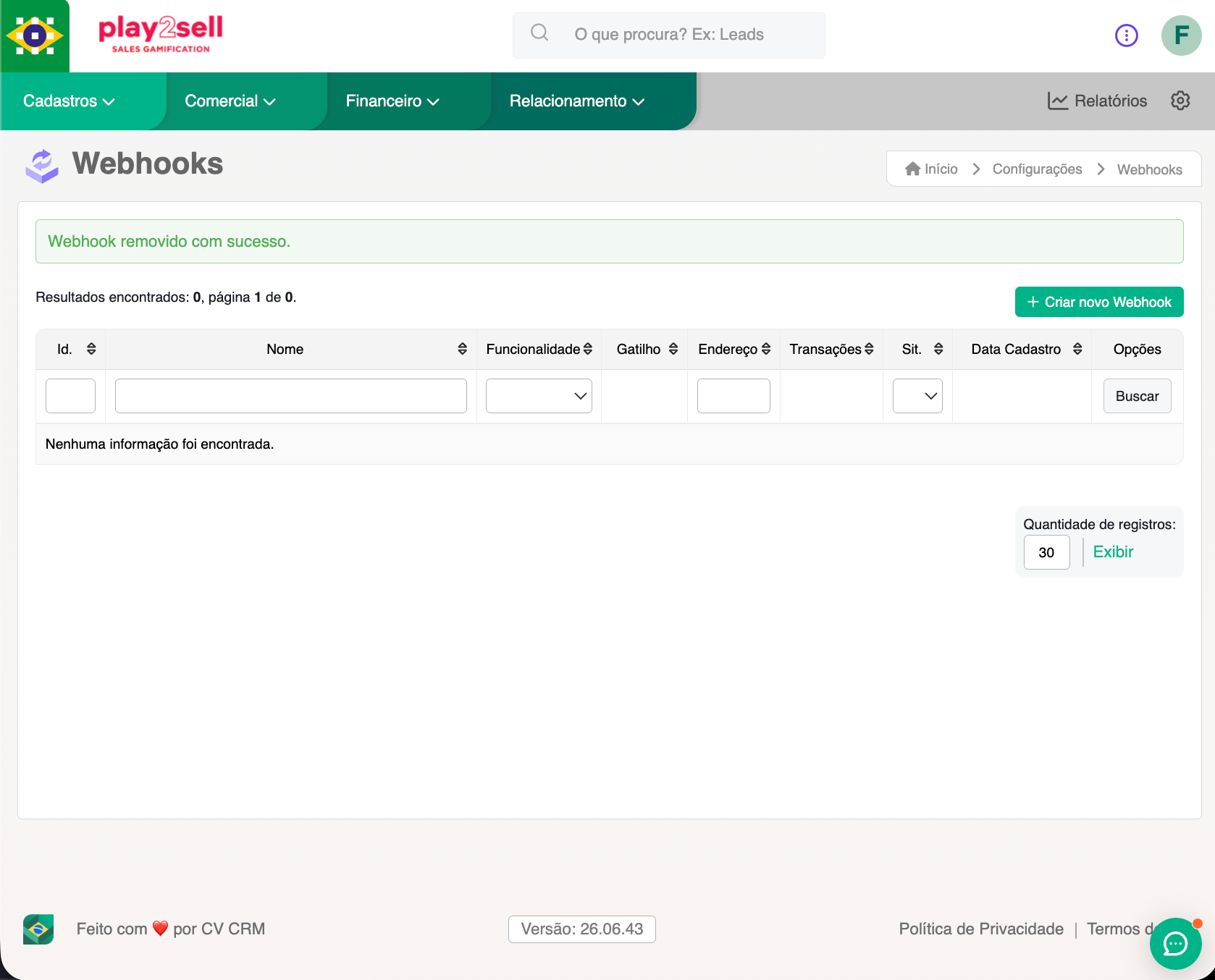 You'll create **3 webhooks** — all pointing to the **same URL** (the one from Step 3). What changes in each is the **Funcionalidade** (Feature) and the **trigger situation**:
| # | Funcionalidade | Trigger situation (example) | Field in the panel (Step 2.2) | What it triggers |
| ----- | -------------- | ---------------------------------- | ------------------------------ | ------------------------------------------------ |
| **1** | **Reserva** | sale / send to commission payments | **Vendida** | origination + boleto issuance |
| **2** | **Comissão** | escriturar | **Escriturada (via comissão)** | releases the transfer (PIX) |
| **3** | **Comissão** | cancellation | **Cancelada (via comissão)** | cancels the unpaid boleto / refunds the paid one |
For each one, click **"+ Criar novo Webhook"** (+ Create new Webhook) and fill in the form:
| CVCRM field | What to enter |
| ------------------- | -------------------------------------------------------------------------------------------------------------------------------------------------------------------------------------------------------------------------------------------------------------------------------------------------------------------------------------- |
| **Nome** | A clear label of your choosing (e.g., `Pagadoria — venda`). |
| **Funcionalidade** | **Reserva** (webhook 1) or **Comissão** (webhooks 2 and 3). |
| **Workflow** | Appears when the Funcionalidade has more than one situation flow. Under **Comissão** there is more than one workflow — choose the one that **contains the trigger situation** ("Escriturar" / "Cancelada"); if unsure, open the selector and see which workflow the situation appears in. Under **Reserva** there is usually only one. |
| **Gatilho** | The **situation** that triggers the send. Use the **exact label** from your instance (the same as in Step 2.2). |
| **Forma de envio** | Leave the default. |
| **Endereço** | **Paste the webhook URL** copied in Step 3. |
| **Ativo no painel** | Leave it **active** — without this, the webhook won't fire. |
You'll create **3 webhooks** — all pointing to the **same URL** (the one from Step 3). What changes in each is the **Funcionalidade** (Feature) and the **trigger situation**:
| # | Funcionalidade | Trigger situation (example) | Field in the panel (Step 2.2) | What it triggers |
| ----- | -------------- | ---------------------------------- | ------------------------------ | ------------------------------------------------ |
| **1** | **Reserva** | sale / send to commission payments | **Vendida** | origination + boleto issuance |
| **2** | **Comissão** | escriturar | **Escriturada (via comissão)** | releases the transfer (PIX) |
| **3** | **Comissão** | cancellation | **Cancelada (via comissão)** | cancels the unpaid boleto / refunds the paid one |
For each one, click **"+ Criar novo Webhook"** (+ Create new Webhook) and fill in the form:
| CVCRM field | What to enter |
| ------------------- | -------------------------------------------------------------------------------------------------------------------------------------------------------------------------------------------------------------------------------------------------------------------------------------------------------------------------------------- |
| **Nome** | A clear label of your choosing (e.g., `Pagadoria — venda`). |
| **Funcionalidade** | **Reserva** (webhook 1) or **Comissão** (webhooks 2 and 3). |
| **Workflow** | Appears when the Funcionalidade has more than one situation flow. Under **Comissão** there is more than one workflow — choose the one that **contains the trigger situation** ("Escriturar" / "Cancelada"); if unsure, open the selector and see which workflow the situation appears in. Under **Reserva** there is usually only one. |
| **Gatilho** | The **situation** that triggers the send. Use the **exact label** from your instance (the same as in Step 2.2). |
| **Forma de envio** | Leave the default. |
| **Endereço** | **Paste the webhook URL** copied in Step 3. |
| **Ativo no painel** | Leave it **active** — without this, the webhook won't fire. |
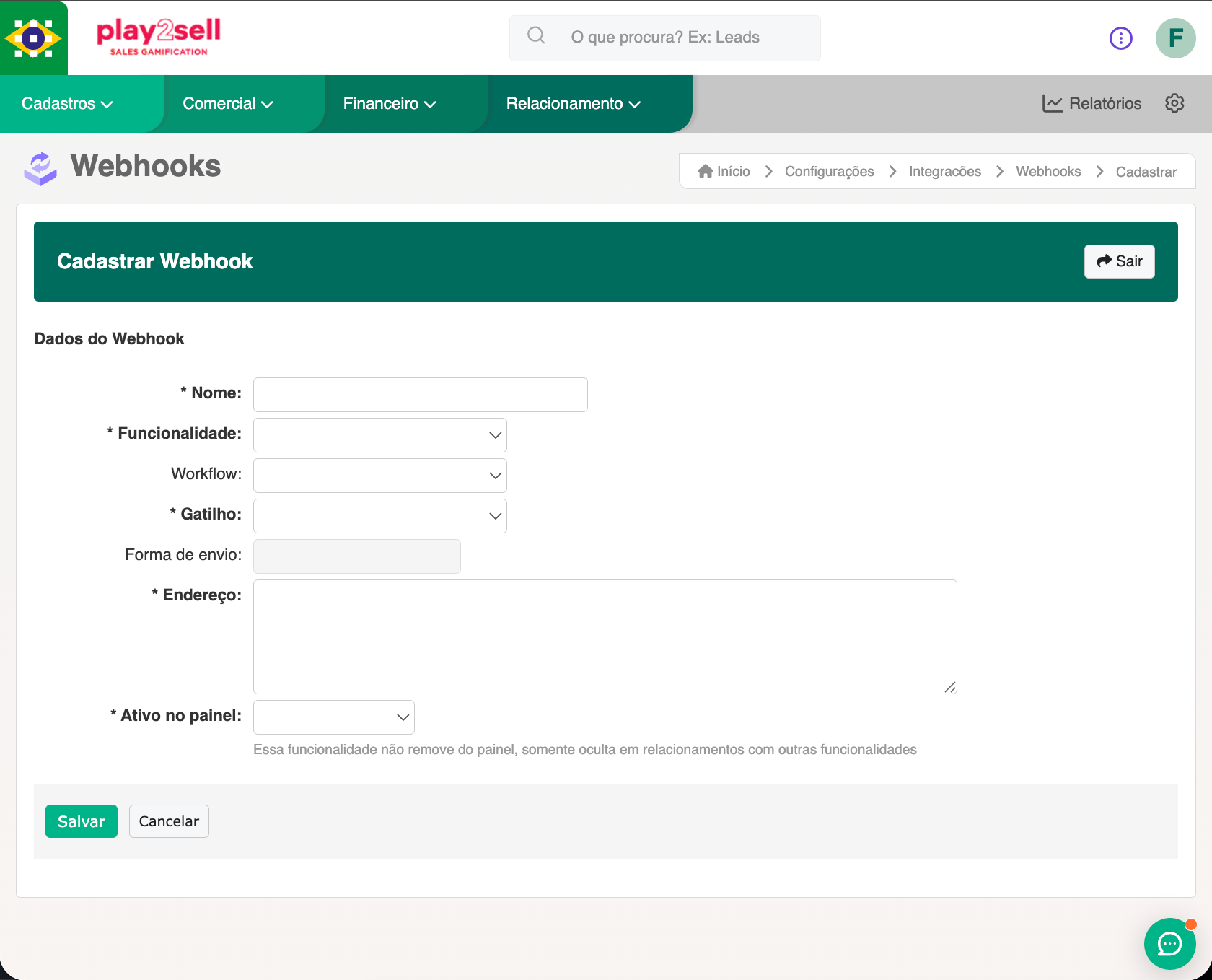 **Funcionalidade Reserva**, on the situation that marks the sale / the send to commission payments (the same as the **Vendida** field, Step 2.2). Makes Play2sell **originate the sale and issue the boleto**.
**Funcionalidade Comissão**, on the situation that indicates deed registration/release — e.g., "Escriturar" (the same as the **Escriturada (via comissão)** field, Step 2.2). **Releases the transfer** and pays the beneficiaries via **PIX**.
**Funcionalidade Comissão**, on the cancellation situation — e.g., "Cancelada" (the same as the **Cancelada (via comissão)** field, Step 2.2). **Cancels** the unpaid boleto or **refunds** the paid one, depending on the state.
Link the webhooks to the integration user ("Integração") — that way the changes made by the automation stay attributable in the CVCRM history.
**Variation by instance.** If your CVCRM records deed registration or cancellation on the **reservation itself** (and not on the commission), create webhooks 2 and 3 with **Funcionalidade Reserva** and, in Step 2.2, use the **Escriturada** and **Distrato** fields instead of the "(via comissão)" ones. The behavior is the same.
**Confirm the 3 webhooks are firing.** In the webhook list, the **Transações** (Transactions) column counts each send. If it stays at **0** after moving a record to the trigger situation, review: the **Funcionalidade**, the **situation** (it must match Step 2.2), whether the webhook is **Ativo no painel**, and whether the **Endereço** is the exact URL from Step 3 (no spaces).
### 4.2 — Register the receipt type (optional)
Do this **only if** you enabled the **Transfer receipt** in Step 2.4. It's a one-time setting that creates the **file type** used to attach the receipt PDF to the commission.
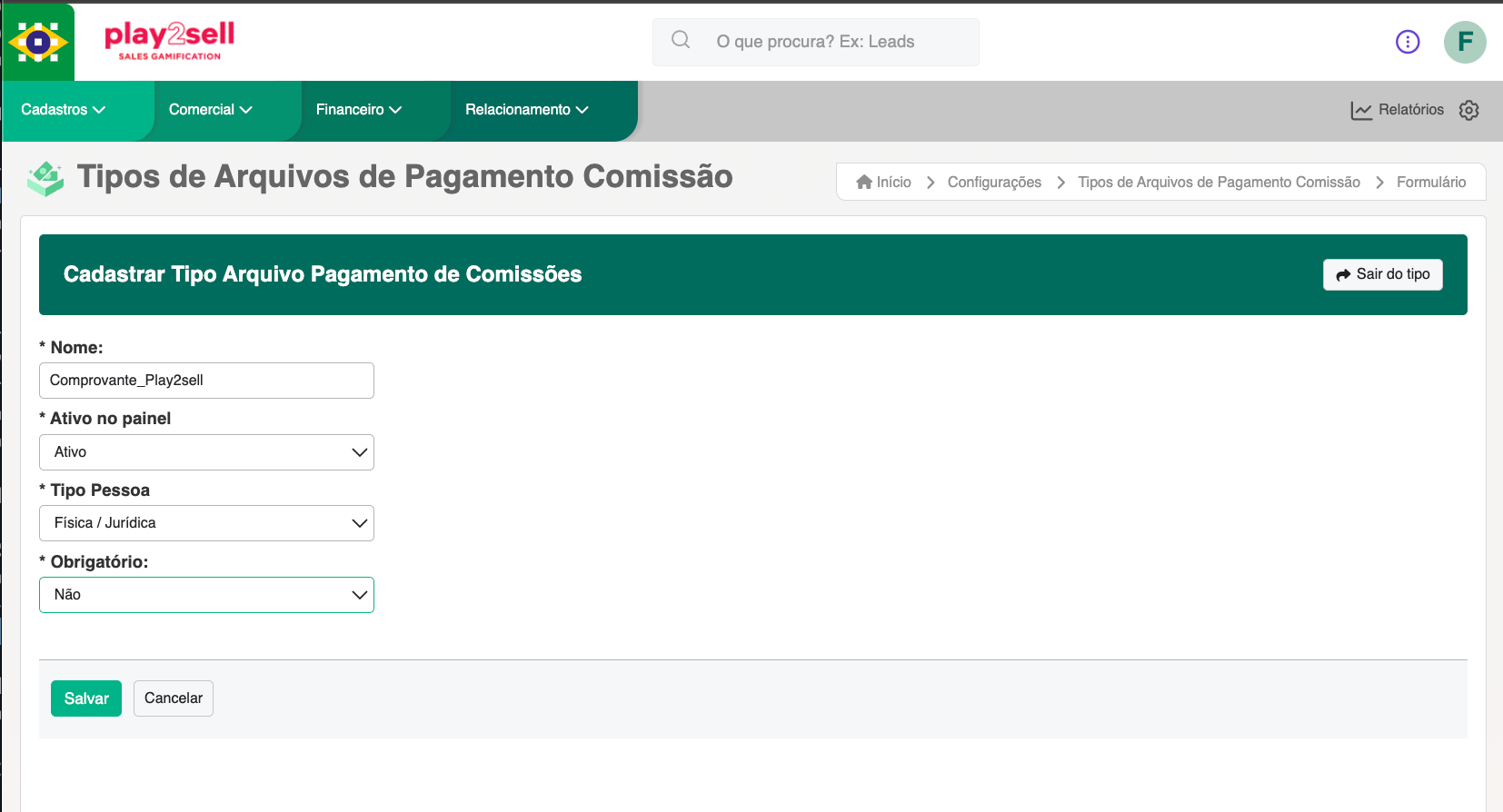
In the CVCRM manager, go to **Configurações → Tipos de Arquivos de Pagamento Comissão** (Settings → Commission Payment File Types), click **"+ Criar novo Tipo"** (+ Create new Type), and fill in:
| Field | What to enter |
| ------------------- | -------------------------------------------------------------------------------------------------------------------------- |
| **Nome** | The type name (e.g., `Comprovante_Play2sell`). **Use exactly this name** in the "Tipo do comprovante" field from Step 2.4. |
| **Ativo no painel** | `Ativo` (Active). |
| **Tipo Pessoa** | `Física / Jurídica` (Individual / Company). |
| **Obrigatório** | `Não` (No) — Play2sell attaches the receipt automatically. |
**Funcionalidade Reserva**, on the situation that marks the sale / the send to commission payments (the same as the **Vendida** field, Step 2.2). Makes Play2sell **originate the sale and issue the boleto**.
**Funcionalidade Comissão**, on the situation that indicates deed registration/release — e.g., "Escriturar" (the same as the **Escriturada (via comissão)** field, Step 2.2). **Releases the transfer** and pays the beneficiaries via **PIX**.
**Funcionalidade Comissão**, on the cancellation situation — e.g., "Cancelada" (the same as the **Cancelada (via comissão)** field, Step 2.2). **Cancels** the unpaid boleto or **refunds** the paid one, depending on the state.
Link the webhooks to the integration user ("Integração") — that way the changes made by the automation stay attributable in the CVCRM history.
**Variation by instance.** If your CVCRM records deed registration or cancellation on the **reservation itself** (and not on the commission), create webhooks 2 and 3 with **Funcionalidade Reserva** and, in Step 2.2, use the **Escriturada** and **Distrato** fields instead of the "(via comissão)" ones. The behavior is the same.
**Confirm the 3 webhooks are firing.** In the webhook list, the **Transações** (Transactions) column counts each send. If it stays at **0** after moving a record to the trigger situation, review: the **Funcionalidade**, the **situation** (it must match Step 2.2), whether the webhook is **Ativo no painel**, and whether the **Endereço** is the exact URL from Step 3 (no spaces).
### 4.2 — Register the receipt type (optional)
Do this **only if** you enabled the **Transfer receipt** in Step 2.4. It's a one-time setting that creates the **file type** used to attach the receipt PDF to the commission.
In the CVCRM manager, go to **Configurações → Tipos de Arquivos de Pagamento Comissão** (Settings → Commission Payment File Types), click **"+ Criar novo Tipo"** (+ Create new Type), and fill in:
| Field | What to enter |
| ------------------- | -------------------------------------------------------------------------------------------------------------------------- |
| **Nome** | The type name (e.g., `Comprovante_Play2sell`). **Use exactly this name** in the "Tipo do comprovante" field from Step 2.4. |
| **Ativo no painel** | `Ativo` (Active). |
| **Tipo Pessoa** | `Física / Jurídica` (Individual / Company). |
| **Obrigatório** | `Não` (No) — Play2sell attaches the receipt automatically. |
 ### 4.3 — Ensure "Payment method = Boleto"
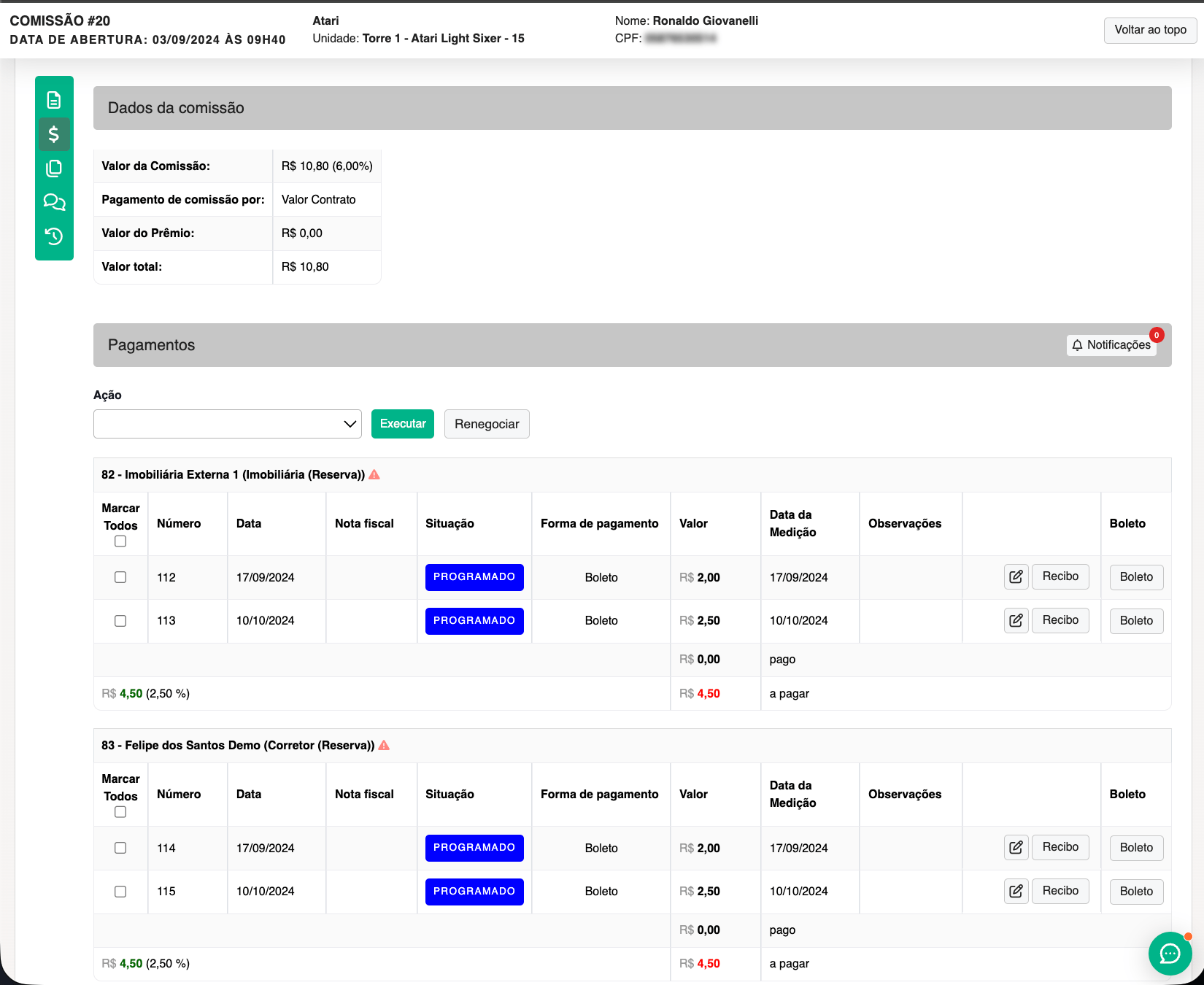
For the boleto issued by Play2sell to appear as the commission receivable (and settle correctly), the **commission payments in CVCRM** must use the **"Boleto" payment method**.
To check: in **Financeiro → Comissões** (Finance → Commissions), open a commission and click the **`$`** icon (Payments). In the **Pagamentos** (Payments) section, each beneficiary installment has a **"Forma de pagamento"** (Payment method) column — it must be set to **Boleto**.
If the installment has another method (e.g., "Transferência bancária"/bank transfer), the boleto we issue **won't match** the commission. Adjust the method to **Boleto** in your CVCRM's commission rule/condition.
### 4.3 — Ensure "Payment method = Boleto"
For the boleto issued by Play2sell to appear as the commission receivable (and settle correctly), the **commission payments in CVCRM** must use the **"Boleto" payment method**.
To check: in **Financeiro → Comissões** (Finance → Commissions), open a commission and click the **`$`** icon (Payments). In the **Pagamentos** (Payments) section, each beneficiary installment has a **"Forma de pagamento"** (Payment method) column — it must be set to **Boleto**.
If the installment has another method (e.g., "Transferência bancária"/bank transfer), the boleto we issue **won't match** the commission. Adjust the method to **Boleto** in your CVCRM's commission rule/condition.
 ## Step 5 — Test and validate
Before operating for real, run an end-to-end test with low amounts.
With a buyer (CPF filled in), a valid amount, and **commissions summing to 100%** for one broker.
This triggers the origination webhook.
The sale appears in the Play2sell panel and the **boleto is attached to the commission** in CVCRM (situation "Programado").
Use the Pix copy-and-paste code (it clears instantly).
The commission changes to **"Pago"** in CVCRM.
Move the commission to the **Escriturar** situation.
The PIX transfer is paid to the beneficiary and the **receipt** is attached to the commission (if configured in Step 2.4).
## Next steps
Once validated, the integration runs on its own. Day to day:
* **Each sale** that enters the commission-payments situation generates the boleto and reflects it on the CVCRM commission, with no manual action.
* **Track** commission status in **Financeiro → Comissões** (CVCRM) and sales in the **Play2sell panel**.
* **To adjust** the situation mapping or the credentials later, go back to **Integrações → Conectores → CVCRM → Editar configuração** (Edit configuration).
## Frequently asked questions
No. The entire setup is done through screens, in the CVCRM manager and the Play2sell panel. You only need administrative access to both systems. No code is required.
Three, all pointing to the **same URL**: (1) **Reserva** on the sale situation → origination; (2) **Comissão** on the "Escriturar" situation → releases the transfer; (3) **Comissão** on the cancellation situation → refund.
CVCRM shows the **gross** commission. Play2sell applies the **service fee** (typically 1–3%) and the beneficiary receives the **net** amount via PIX. The calculation uses the **commission amount**, not the sale amount.
Yes. The boleto and the split are calculated on the **commission amount**, so any percentage works.
After the commission's deed is **registered** in CVCRM, the **PIX** transfer is processed within seconds and lands in the beneficiary's account.
No, it's **optional**. Without it, the transfer is paid normally; only the PDF attachment on the CVCRM commission doesn't happen.
## Troubleshooting
Check in CVCRM: is the webhook **Ativo** (active)? Do the **Funcionalidade** (Reserva/Comissão) and the trigger **situation** match what you mapped in the panel? Is the **Endereço** the exact URL copied in Step 3 (no spaces/line breaks)?
Confirm that the commission's **payment method** is **Boleto** (Step 4.3) and that the exit situation **"Comissão com boleto"** is filled in (e.g., `Programado`). Reprocessing the reservation usually resolves cases where the configuration was adjusted afterward.
Identity is by **CPF/CNPJ**, never by email. Make sure the beneficiary's document is filled in and correct in CVCRM.
Payment confirmations and write-backs can take a few moments. If it persists, reprocess the reservation or contact support.
## Reference
### End-to-end lifecycle
| Stage | Event in CVCRM | Play2sell action | What you see |
| ------------------------------- | ------------------------------------- | ------------------------------------------------------------- | ---------------------------------------------------------------------------------- |
| **1. Origination** | Reservation → sale situation | Creates the sale + split and issues the **boleto (with Pix)** | Sale in the panel; boleto generated |
| **2. Boleto on the commission** | — (write-back) | Attaches the boleto to the commission | Commission becomes **Programado**; Boleto/Commission-payments ID columns filled in |
| **3. Payment / settlement** | Buyer pays the boleto | Confirms the payment and reports it to CVCRM | Commission becomes **Pago** |
| **4. Deed registration** | Commission → **Escriturar** situation | Releases the transfer | Protocol released |
| **5. Transfer** | — | Pays the beneficiary via **PIX** | Transfer completed (net) |
| **6. Receipt** | — (write-back) | Attaches the receipt to the commission | PDF in "Documentos do pagamento da Comissão" |
| **Contract termination** | Reservation/Commission → cancellation | Refunds depending on the state | Operation refunded |
### Error contract
Error responses follow the `{ code, message, hint? }` format:
* **4xx — rejection:** something is incorrect (e.g., an unmapped situation). **Fix it and try again.**
* **5xx — transient error:** a temporary failure. It is **reprocessed automatically**.
### Technical appendix
This section is for technical teams. The setup above requires nothing from here.
**CVCRM API families**
| Family | Use | Note |
| ----------------------------- | --------------------------------- | ----------------------------------------------------------------------- |
| **v1** (`/api/v1//*`) | Current — used by the integration | Auth via `email` + `token` headers; 200 req/min |
| **CVIO** (`/api/cvio/*`) | Legacy | **Being deprecated** — CVCRM is standardizing on v1 |
| **CVDW** (`/api/v1/cvdw/*`) | BI / data warehouse | **Separately paid contract**; 20 req/min; returns 403 if not contracted |
**Synchronization and idempotency**
* **Thin webhook → pull-back:** the webhook carries only an id; Play2sell fetches the full record via an authenticated `GET` before acting.
* **Idempotency:** each contract maps to a stable key derived from the reservation id (`cvcrm:{idreserva}`); redelivery never duplicates the sale.
* **Ordering:** if deed registration arrives before origination completes, it is deferred and reprocessed.
**Gotchas**
* CVCRM may return **HTTP 200 with `codigo:404` in the body** for non-existent routes — always check the `codigo` field, not just the HTTP status.
* Date filters on some endpoints are **ignored** — window on the client side.
* Dates in the installments GET use **DD/MM/YYYY**.
* There are **two distinct situation workflows** — the **commission** one and the **commission payment** one — with ids that can collide. That's why the situation write-back uses the **name** ("Programado"/"Pago"), not the id.
## Support
Need help mapping the situations in your instance? Contact support at **[suporte@play2sell.com](mailto:suporte@play2sell.com)** with your **domain** and the list of situations you use for sale / deed registration / contract termination.
## Step 5 — Test and validate
Before operating for real, run an end-to-end test with low amounts.
With a buyer (CPF filled in), a valid amount, and **commissions summing to 100%** for one broker.
This triggers the origination webhook.
The sale appears in the Play2sell panel and the **boleto is attached to the commission** in CVCRM (situation "Programado").
Use the Pix copy-and-paste code (it clears instantly).
The commission changes to **"Pago"** in CVCRM.
Move the commission to the **Escriturar** situation.
The PIX transfer is paid to the beneficiary and the **receipt** is attached to the commission (if configured in Step 2.4).
## Next steps
Once validated, the integration runs on its own. Day to day:
* **Each sale** that enters the commission-payments situation generates the boleto and reflects it on the CVCRM commission, with no manual action.
* **Track** commission status in **Financeiro → Comissões** (CVCRM) and sales in the **Play2sell panel**.
* **To adjust** the situation mapping or the credentials later, go back to **Integrações → Conectores → CVCRM → Editar configuração** (Edit configuration).
## Frequently asked questions
No. The entire setup is done through screens, in the CVCRM manager and the Play2sell panel. You only need administrative access to both systems. No code is required.
Three, all pointing to the **same URL**: (1) **Reserva** on the sale situation → origination; (2) **Comissão** on the "Escriturar" situation → releases the transfer; (3) **Comissão** on the cancellation situation → refund.
CVCRM shows the **gross** commission. Play2sell applies the **service fee** (typically 1–3%) and the beneficiary receives the **net** amount via PIX. The calculation uses the **commission amount**, not the sale amount.
Yes. The boleto and the split are calculated on the **commission amount**, so any percentage works.
After the commission's deed is **registered** in CVCRM, the **PIX** transfer is processed within seconds and lands in the beneficiary's account.
No, it's **optional**. Without it, the transfer is paid normally; only the PDF attachment on the CVCRM commission doesn't happen.
## Troubleshooting
Check in CVCRM: is the webhook **Ativo** (active)? Do the **Funcionalidade** (Reserva/Comissão) and the trigger **situation** match what you mapped in the panel? Is the **Endereço** the exact URL copied in Step 3 (no spaces/line breaks)?
Confirm that the commission's **payment method** is **Boleto** (Step 4.3) and that the exit situation **"Comissão com boleto"** is filled in (e.g., `Programado`). Reprocessing the reservation usually resolves cases where the configuration was adjusted afterward.
Identity is by **CPF/CNPJ**, never by email. Make sure the beneficiary's document is filled in and correct in CVCRM.
Payment confirmations and write-backs can take a few moments. If it persists, reprocess the reservation or contact support.
## Reference
### End-to-end lifecycle
| Stage | Event in CVCRM | Play2sell action | What you see |
| ------------------------------- | ------------------------------------- | ------------------------------------------------------------- | ---------------------------------------------------------------------------------- |
| **1. Origination** | Reservation → sale situation | Creates the sale + split and issues the **boleto (with Pix)** | Sale in the panel; boleto generated |
| **2. Boleto on the commission** | — (write-back) | Attaches the boleto to the commission | Commission becomes **Programado**; Boleto/Commission-payments ID columns filled in |
| **3. Payment / settlement** | Buyer pays the boleto | Confirms the payment and reports it to CVCRM | Commission becomes **Pago** |
| **4. Deed registration** | Commission → **Escriturar** situation | Releases the transfer | Protocol released |
| **5. Transfer** | — | Pays the beneficiary via **PIX** | Transfer completed (net) |
| **6. Receipt** | — (write-back) | Attaches the receipt to the commission | PDF in "Documentos do pagamento da Comissão" |
| **Contract termination** | Reservation/Commission → cancellation | Refunds depending on the state | Operation refunded |
### Error contract
Error responses follow the `{ code, message, hint? }` format:
* **4xx — rejection:** something is incorrect (e.g., an unmapped situation). **Fix it and try again.**
* **5xx — transient error:** a temporary failure. It is **reprocessed automatically**.
### Technical appendix
This section is for technical teams. The setup above requires nothing from here.
**CVCRM API families**
| Family | Use | Note |
| ----------------------------- | --------------------------------- | ----------------------------------------------------------------------- |
| **v1** (`/api/v1//*`) | Current — used by the integration | Auth via `email` + `token` headers; 200 req/min |
| **CVIO** (`/api/cvio/*`) | Legacy | **Being deprecated** — CVCRM is standardizing on v1 |
| **CVDW** (`/api/v1/cvdw/*`) | BI / data warehouse | **Separately paid contract**; 20 req/min; returns 403 if not contracted |
**Synchronization and idempotency**
* **Thin webhook → pull-back:** the webhook carries only an id; Play2sell fetches the full record via an authenticated `GET` before acting.
* **Idempotency:** each contract maps to a stable key derived from the reservation id (`cvcrm:{idreserva}`); redelivery never duplicates the sale.
* **Ordering:** if deed registration arrives before origination completes, it is deferred and reprocessed.
**Gotchas**
* CVCRM may return **HTTP 200 with `codigo:404` in the body** for non-existent routes — always check the `codigo` field, not just the HTTP status.
* Date filters on some endpoints are **ignored** — window on the client side.
* Dates in the installments GET use **DD/MM/YYYY**.
* There are **two distinct situation workflows** — the **commission** one and the **commission payment** one — with ids that can collide. That's why the situation write-back uses the **name** ("Programado"/"Pago"), not the id.
## Support
Need help mapping the situations in your instance? Contact support at **[suporte@play2sell.com](mailto:suporte@play2sell.com)** with your **domain** and the list of situations you use for sale / deed registration / contract termination.